
Appendix 2 — Part 3: Connect AI to GitHub
This Part
In the previous part, we created a repository named my-prompts and put our first file in it: the instructions for writing postoperative care advice.
But we do not want to upload and edit files manually every time. We want AI to do those tasks, while we review the result.
Connect ChatGPT to GitHub
We can connect the GitHub plugin. Think of a plugin as a bridge between two apps: with our permission, it lets ChatGPT access files in our GitHub account.
In ChatGPT, open the side menu and select Plugins.
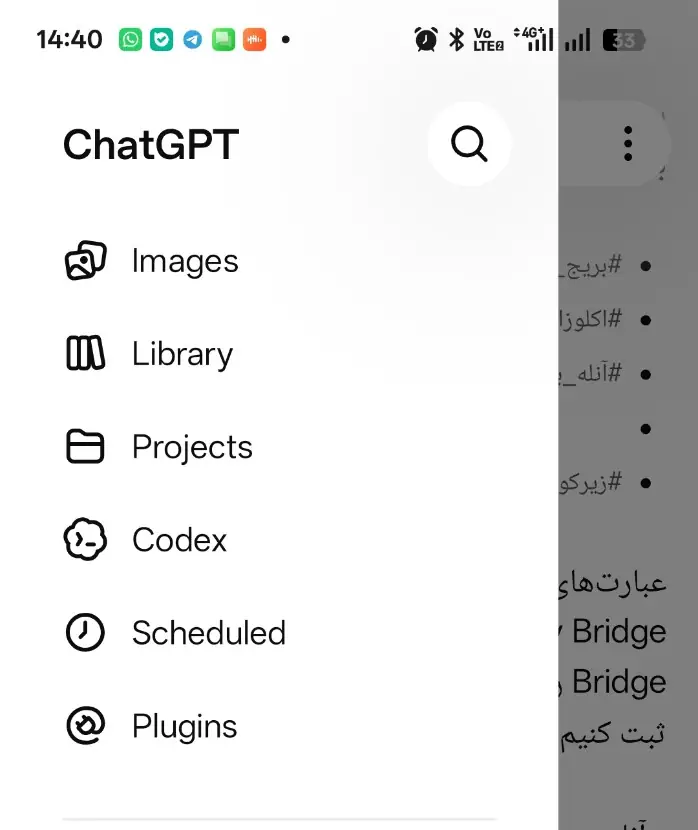
Find GitHub in the plugin list, then follow the installation and account-connection steps.
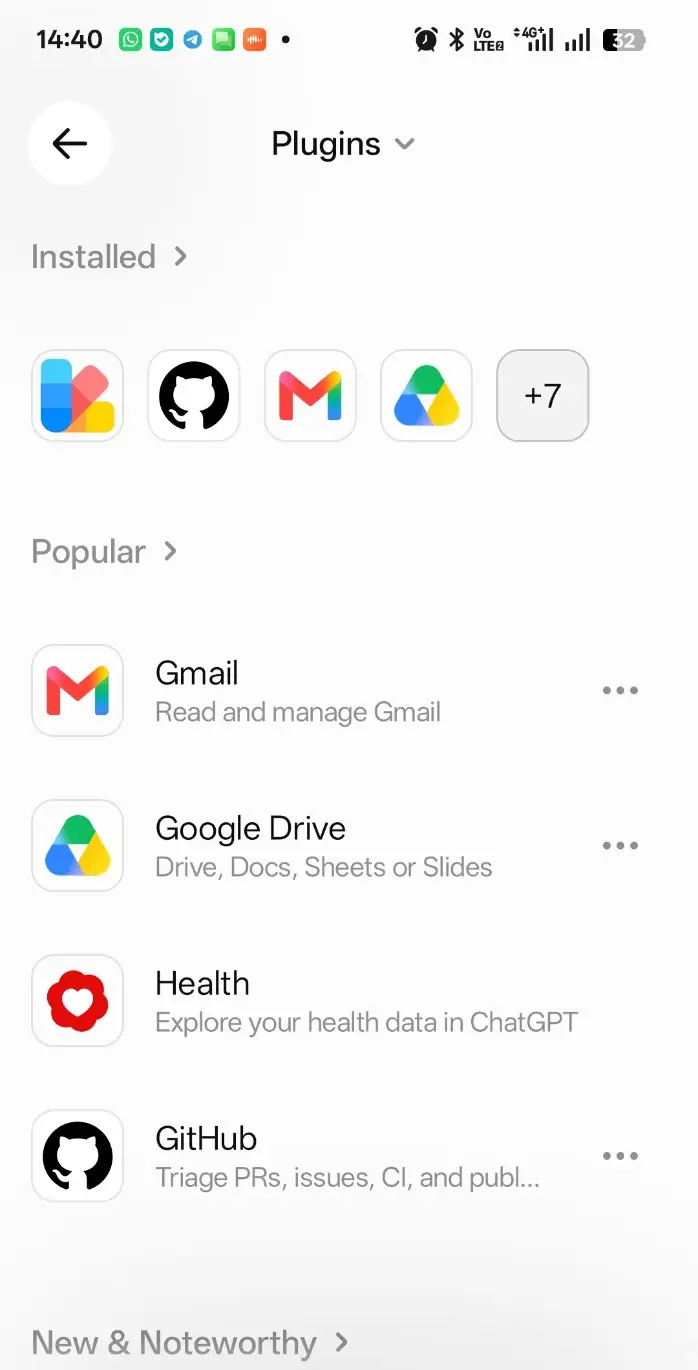
Once connected, the plugin settings show which account is connected and which permissions you have granted to ChatGPT.
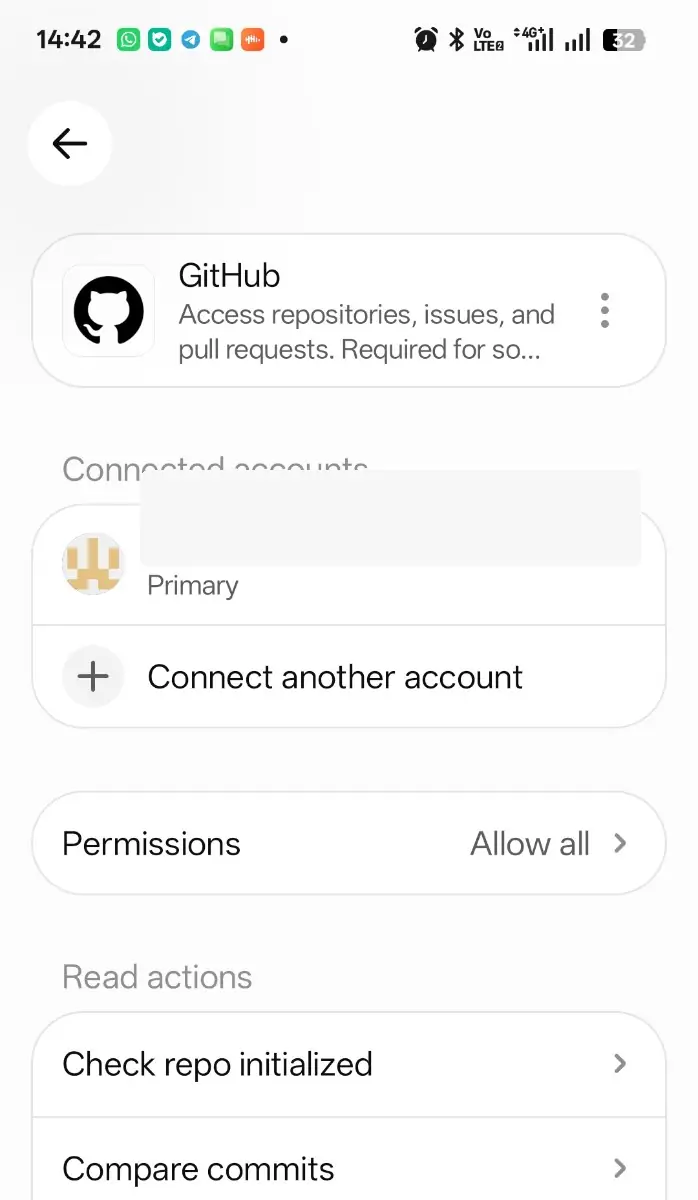
Under Permissions, you control when the AI should ask you before acting.
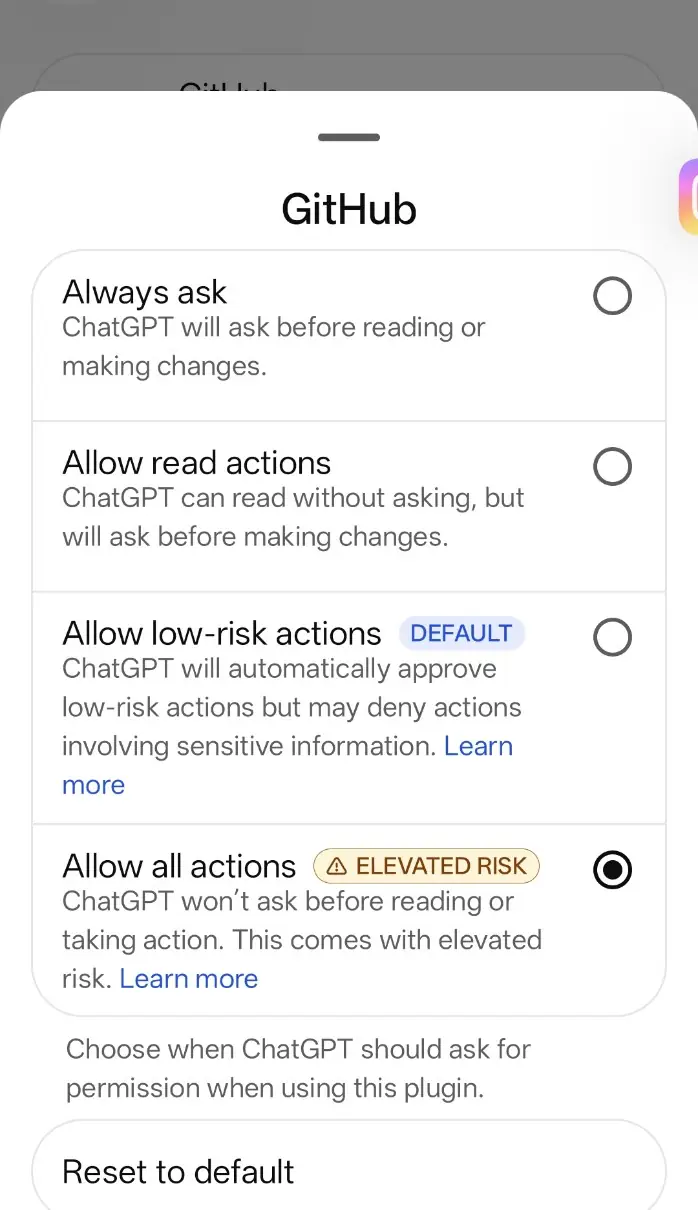
For a first attempt, Allow read actions is a reasonable choice: ChatGPT may read information, but asks for approval before making changes. The connection itself must also support write access for any file changes.
A useful reminder: ChatGPT's menus may change in future versions. You do not have to memorize where every button lives. Take a screenshot and ask AI:
I want to connect GitHub so you can read my files and edit them with my approval. Tell me what to do from this screen.
Before our first edit: what is a branch?
Imagine you have cemented a crown for a patient. Later you decide that, for esthetic reasons, the crown should be replaced, although it still functions acceptably.
There is no need to remove it immediately. You can leave it in place while a new crown is designed and fabricated.
Until the replacement is ready and approved, the original crown stays in place.
Git can follow a similar approach.
A repository normally has a main line of work called main. For now, think of that as the original crown that is still being used.
We can create a parallel line of work for the proposed changes without immediately altering the original.
This parallel line is called a branch.
For example, we can update the postoperative-instructions file on a new branch, revising it as many times as needed while the version on main remains unchanged.
Once we approve the result, we can bring those changes into the main line. This is called a merge.
In the crown example, this resembles approving the new crown and replacing the original one. In Git, however, a merge combines changes into the target branch while preserving the history.
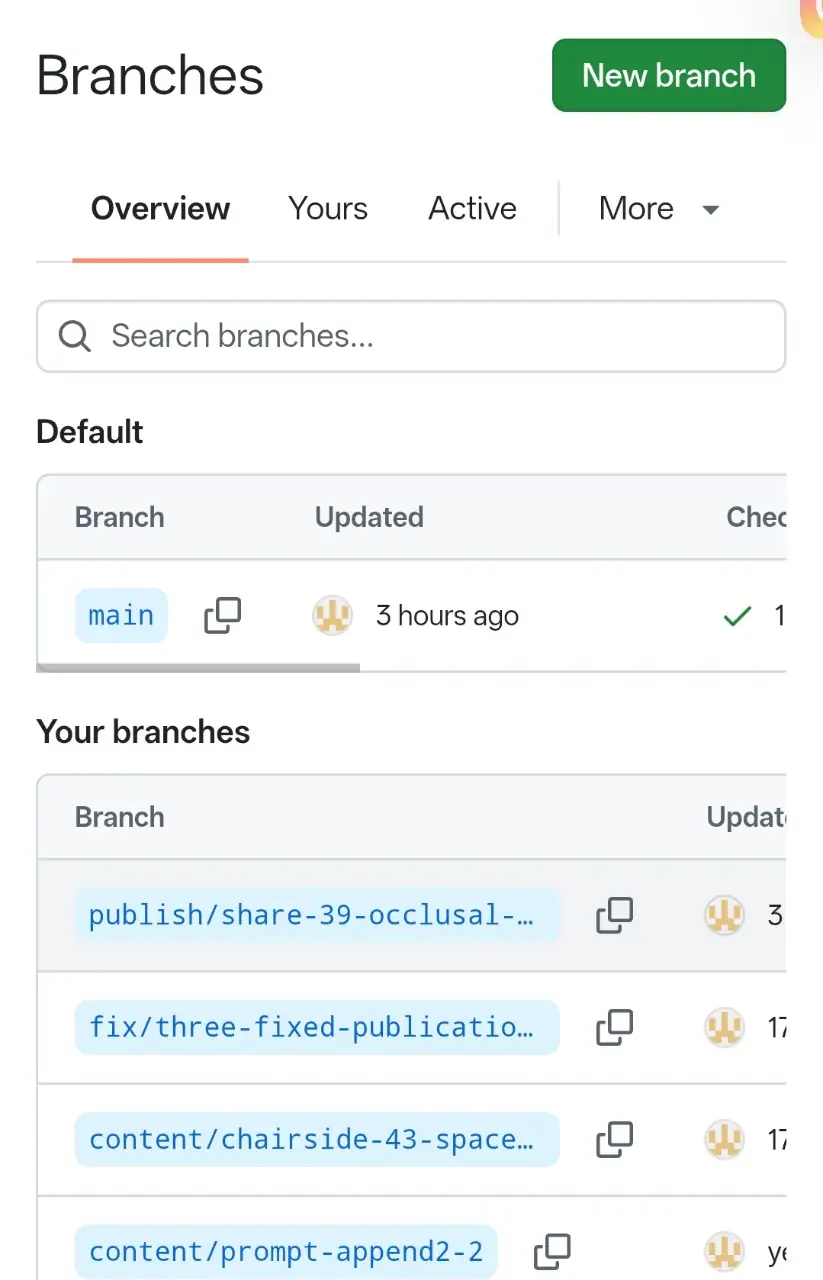
The screenshot shows the main line and several other branches created for different tasks.
We do not need to build or manage those branches manually; AI can do that for us.
Now let's try it
Open Work in ChatGPT and give it this request:
In my my-prompts repository, add a note to the end of the postoperative care instructions saying that advice should be reviewed for the patient's circumstances and the clinician's judgment.
Work on a separate branch and do not merge without my approval. Show me the result.
That's it!
If the tool has the right access and supports those operations, Work can carry out the request.
We do not need to follow every technical step in GitHub. We can read Work's report and review the proposed result at the end.
The edited version is now on its own branch, while the main version remains unchanged.
Bring the change into the main version
If we review the result and are happy with it, we can simply tell Work:
I approve. Merge the changes and give me the link to the main version.
If there are no merge blockers and Work has the necessary access, it can perform the merge. Otherwise, it should report the problem.
The approved changes have now been incorporated into the main line.