Appendix 2 — Part 6: What If We Lose Access to GitHub Too?
This Part
In the previous parts, we learned how to keep our files on GitHub, change them with the help of AI, and return to earlier versions when needed.
But one question remains:
If one day we no longer had access to GitHub either, what would happen to our files?
Fortunately, we can keep a copy of all the files on our own computer; a copy we can access even without the internet.
Option one: downloading the files
Let us return to the same my-prompts repository we created in earlier parts.
Suppose it contains several different prompts, from postoperative care instructions to prompts for summarizing scientific articles.
Now we want to save all these files on our computer.
All we need to do is open the repository, click the Code button, and choose Download ZIP.
GitHub gives us a compressed file that we can download.
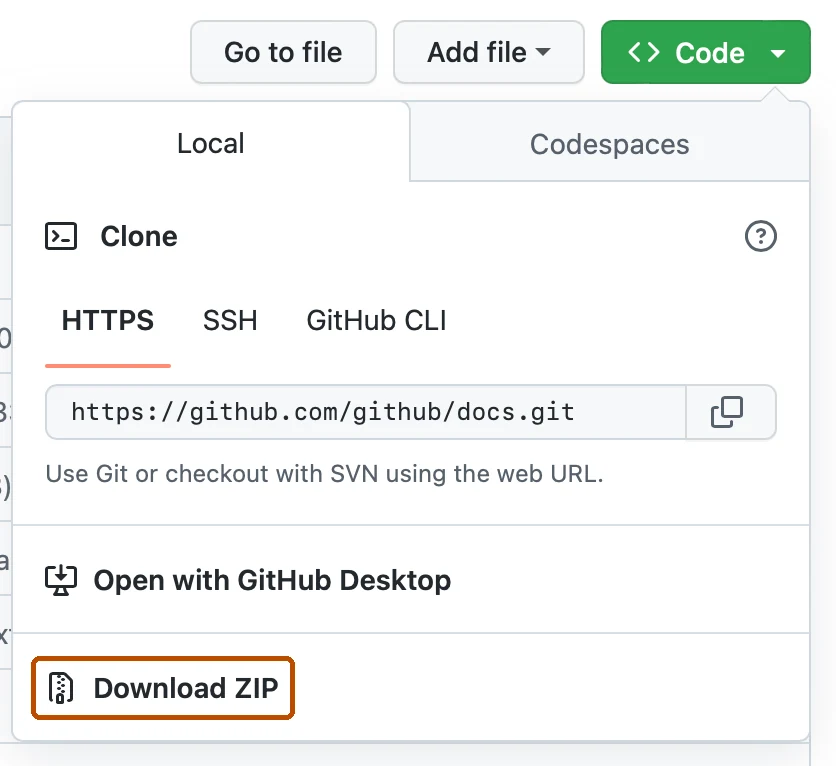
It is that simple: we now have a copy of our files.
But this method has one limitation.
What if we also want to keep the earlier versions?
Suppose we have revised the postoperative care instructions prompt several times over a few months.
In earlier parts, we saw that GitHub can keep the history of these changes.
But when we get the files through Download ZIP, we only have the files of the selected version, not their change history.
That means we can no longer tell from the downloaded file which sentence we changed two months ago.
To have both the files and their change history, there is another way.
Option two: Clone
GitHub has a feature called Clone.
The name may sound strange, but the concept is very simple.
Cloning means keeping a copy of the repository, together with its change history, on our own computer.
This way, even if we had no access to GitHub, we could review the files and the earlier recorded versions we have received.
For this, there is a simple program called GitHub Desktop.
We can download it from this address:
After installing the program and signing in to our GitHub account, we open our repository.
We click Code and this time choose Open with GitHub Desktop.
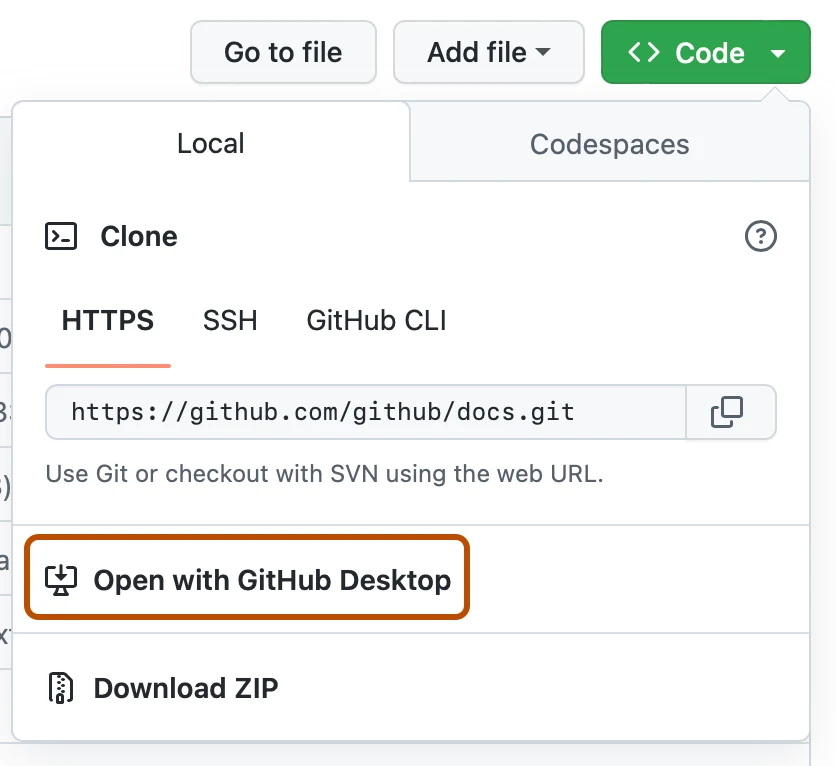
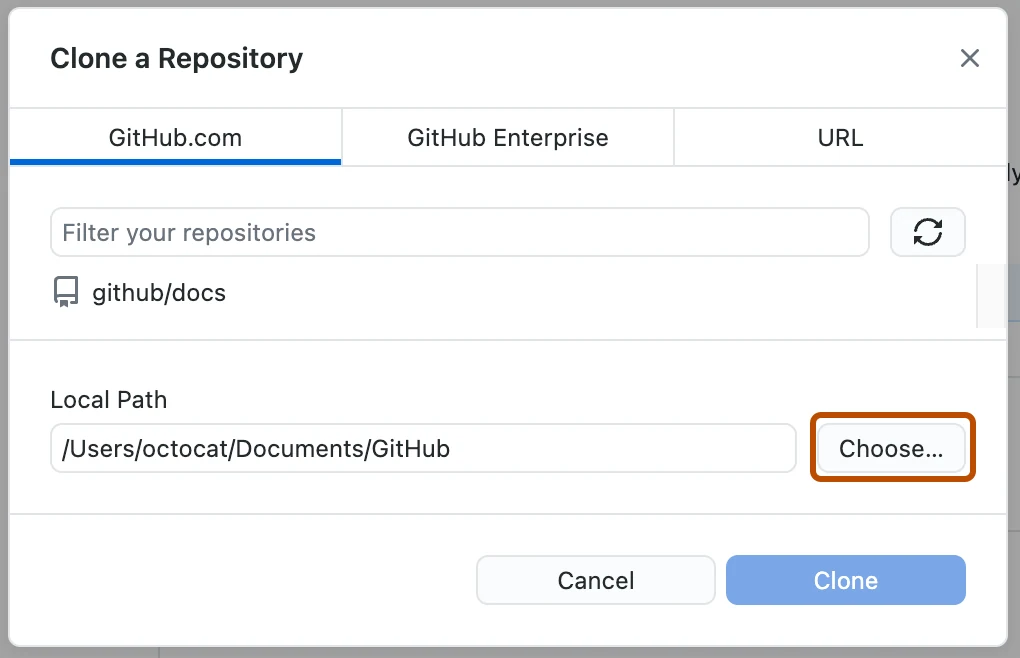
The program asks where on the computer to save the files.
We choose the location and click Clone.
Done!
Now we have a copy of the repository and its change history on our computer.
What if the files change later?
Suppose today we saved a copy of the repository on our laptop.
Tomorrow we ask AI to revise one of the prompts, and the changes are recorded on GitHub.
Does the copy on the laptop update automatically?
No. We need to get the new changes.
Fortunately, this is also simple in GitHub Desktop.
With Fetch origin, the program checks whether there are any new changes. If there are, we can get them with Pull origin.
Of course, if we have also changed the files on our computer ourselves, the differences may need to be reviewed first.


Images: GitHub Docs (CC BY 4.0)
So it is a good idea to update the copy on the computer every now and then, especially after important changes.
Can we hand this job to AI as well?
To some extent, yes.
AI can review the files on GitHub and help us get or update them.
But there is one point.
The fact that AI has access to GitHub does not necessarily mean it has access to our computer.
If the AI tool runs on our own computer and has permission to access the files, it may be able to do this for us too.
Otherwise, we can easily use GitHub Desktop ourselves.
One last recommendation
Now we have one copy of our files on GitHub and another on our own computer.
But a computer can also break down or lose its data.
That is why it is better to keep another copy of important files on an external hard drive or in another safe place.
If we want the change history to be preserved as well, we must back up the entire repository folder, including its hidden files.
The end of Appendix 2
We began this appendix with a concern:
If one day we lose access to AI or to our account, what happens to the information we prepared with its help?
Over these six parts, we got to know GitHub, created a repository, learned how to keep our files in it, change them with the help of AI, and return to earlier versions when needed.
Finally, we saw that we can keep an independent copy of our information on our own computer.
The aim of this tutorial was not to learn programming or become GitHub experts.
The goal was to know where our information is stored and how we can keep it, even if we no longer had access to the previous tool.
AI can do many of these tasks for us. We only need to know what we want and how to review the result.
In the end, the main point was this:
We may change our AI tool, and we may lose access to a service, but we should not lose the fruit of our work along with it.