
Filling the Ledger: Your Site on Your Own Domain
This Part
Right now your site opens at an address such as drsamadi.github.io (a hypothetical example). This address is temporary, and GitHub gave it. Last time, when you put Arvan’s two Name Server addresses in the IRNIC panel in place of the old ones, your domain’s ledger, for example drsamadi.ir, reached Arvan. But the ledger is still empty and nowhere does it say where your site is; that is why, if you type the domain on your phone now, still nothing opens. In this part we do three things: we write in the ledger where the site is, we tell GitHub that this name belongs to your site, and we turn on the site’s lock. At the end, drsamadi.ir opens on your phone.
One site, two addresses
You have surely seen that some addresses start with www, such as www.drsamadi.ir, and some do not, such as drsamadi.ir. You may think the two are the same, but to the internet they are two separate names. It is like a patient who once introduces himself as “Rezaei” and once as “Ali Rezaei”; if the secretary has written only one of the two in her ledger, next time she will not find the file.
Patients type both forms. So in the ledger we write a line both for drsamadi.ir and for www.drsamadi.ir, and send both to the same site.
New lines in the ledger
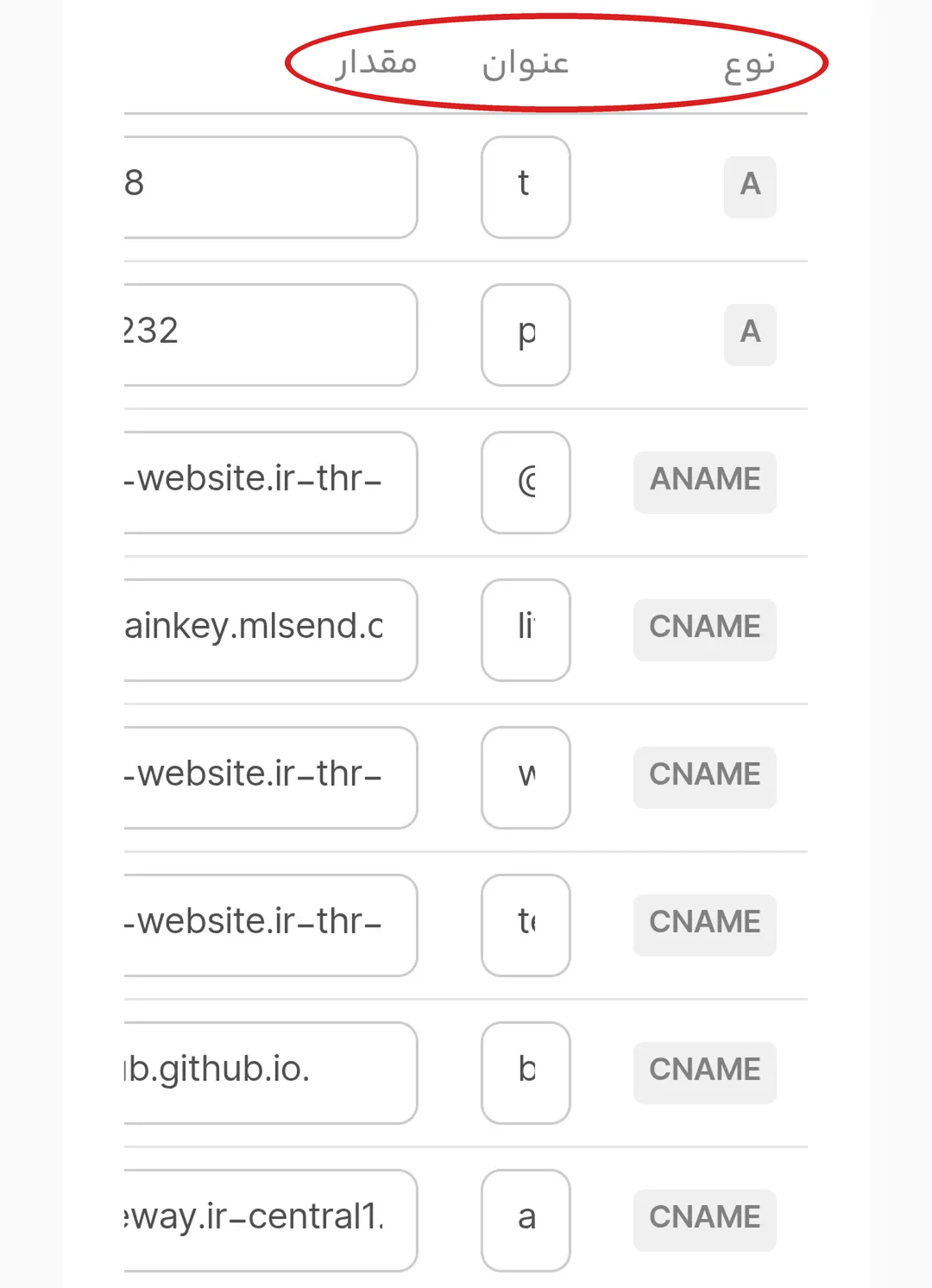
The DNS ledger in the Arvan panel is a table. Each row of this table is one line of the ledger and is called a “record”. Each record has three columns:
- Name: the name the patient types on the phone. Because every name in this ledger ends with drsamadi.ir, that part is no longer written and only the first part of the name goes here. For www.drsamadi.ir you write only www. drsamadi.ir itself has no first part, so you put the @ sign in its place.
- Value: the place the patient should go to by typing that name.
- Type: says what this line is for. The ledger is not only for the site; for example, if you also have email with your domain, a line also says where the emails are delivered. Like the secretary’s ledger where one column is the file number and one column is the phone number; the type is that column name and says what we wrote the value for.
If you open the list of types, you see many names. So that they are not strangers, very briefly:
- A and CNAME: the site’s address. These two are all you need.
- AAAA: like A, but for the internet’s new-generation numbers, which are longer.
- ANAME: like CNAME, but for the domain itself without www.
- NS: the same two lines that brought the ledger from IRNIC to Arvan.
- MX: says where the domain’s emails, for example a letter sent to info@drsamadi.ir, are delivered.
- TXT: a note in the ledger, usually to show a service such as Google that the domain is yours.
- SRV, PTR and CAA: technical jobs that have nothing to do with a practice website.
In this part you only work with A and CNAME and do not touch the rest.
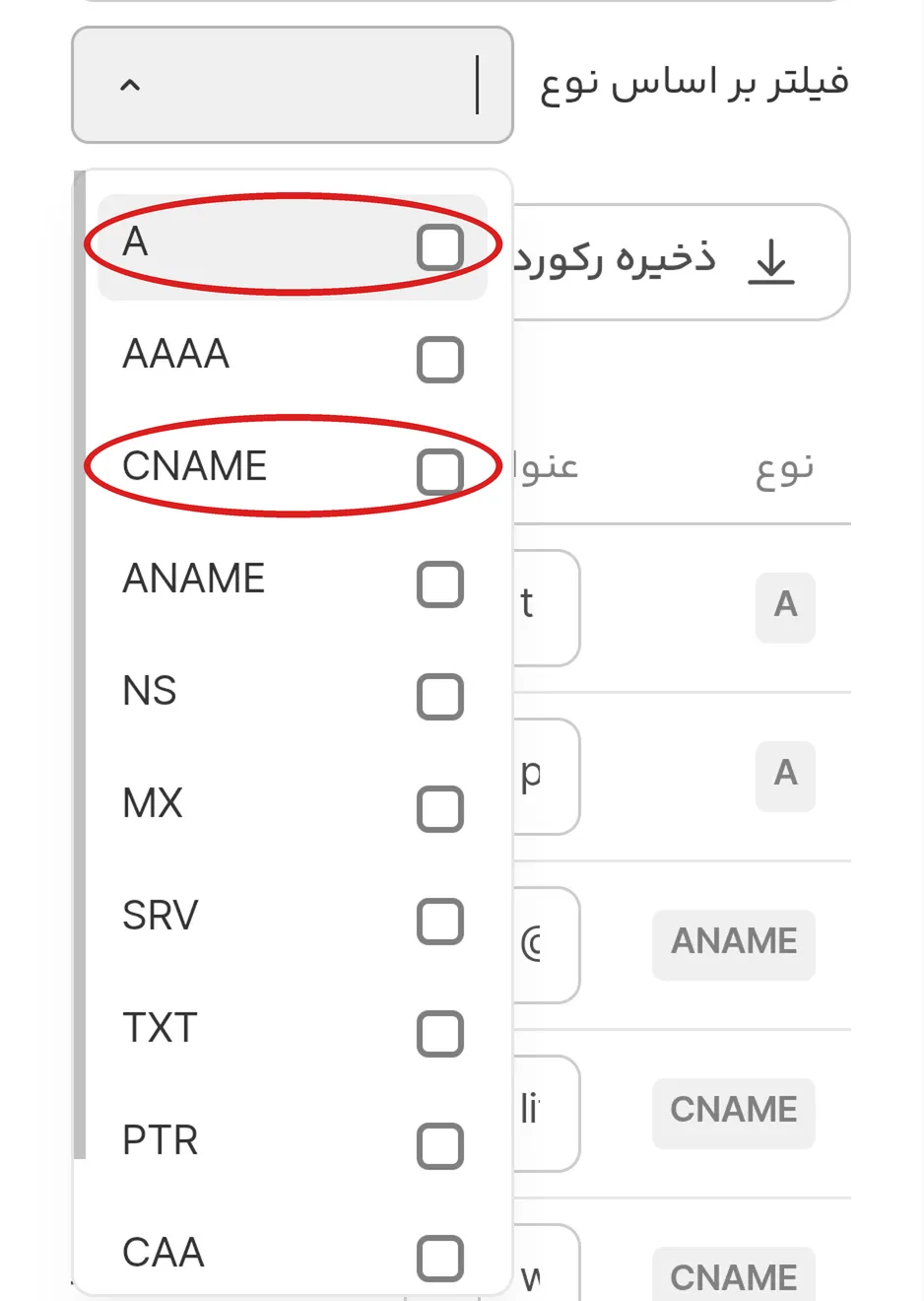
The difference between A and CNAME is like the difference between two ways of giving a patient directions: either you say the building’s street number, or you say “the same building where the pharmacy is”.
- An A record means an address by number. Every server on the internet has a number, like a building’s street number, made of four numbers with dots, such as 185.199.108.153. This number is called an IP.
- A CNAME record means an address by name: “go to the same place this name goes”.
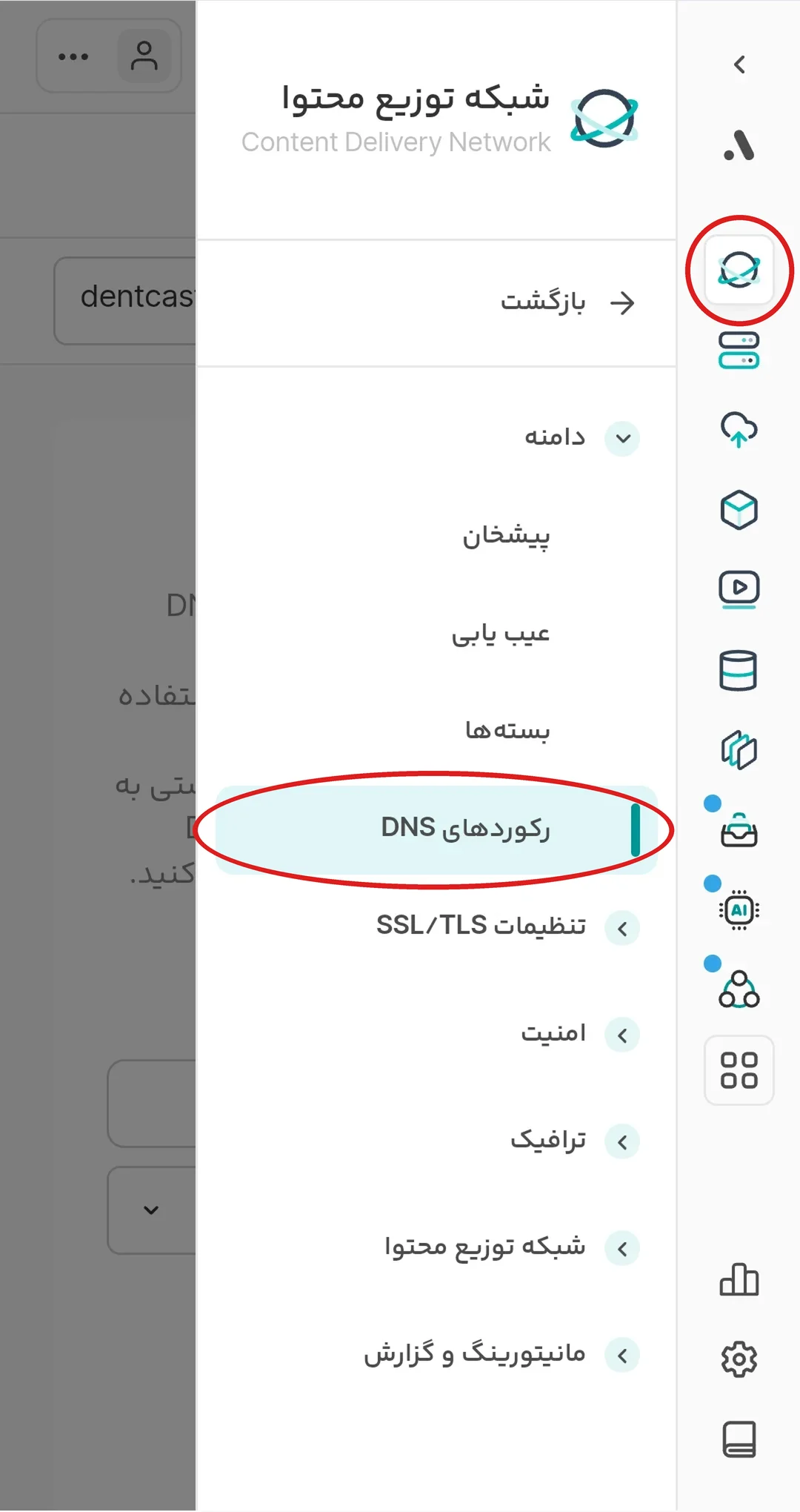
Now let’s get to work. In the Arvan panel, in the narrow bar at the side of the screen, tap the CDN icon (shaped like a planet with a ring), and then, from the menu that opens, tap “DNS records”.
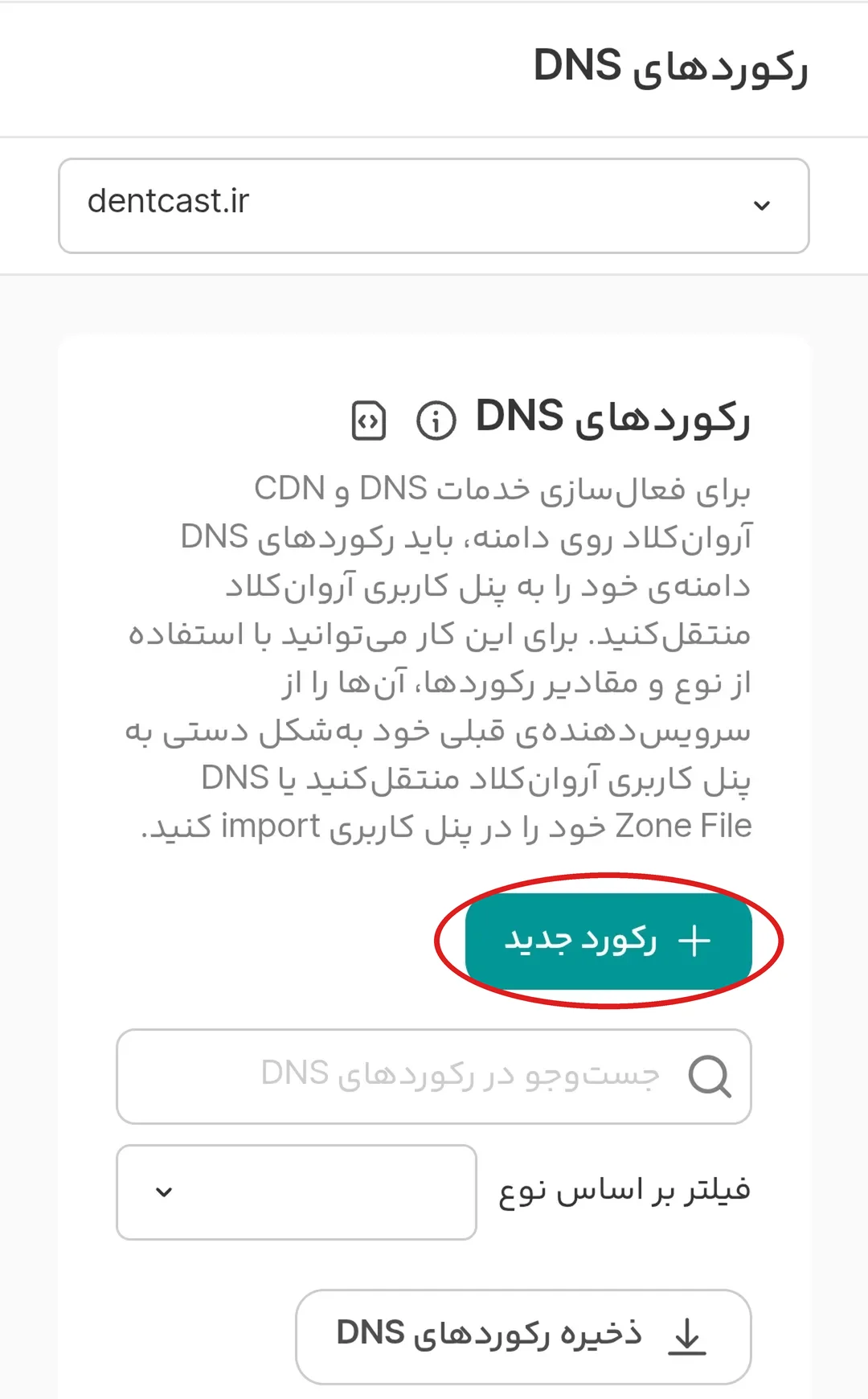
On this page you see the green “+ New record” button. Every time you tap it, a new line is added to the ledger. At the bottom of the same page there are two Name Server lines that you saw last time; do not touch them.
Four lines for drsamadi.ir:
GitHub has four numbers (IPs). These four numbers are like four doors of one building; if one is closed, the patient comes in through another. You make a separate line for each number, so there are four lines that differ only in their value:
| Type | Name | Value | Cloud switch |
|---|---|---|---|
| A | @ | 185.199.108.153 | Off |
| A | @ | 185.199.109.153 | Off |
| A | @ | 185.199.110.153 | Off |
| A | @ | 185.199.111.153 | Off |
That is, you tap “+ New record” four times and each time set the type to A and the name to @; only the value’s number changes. The @ sign in all four lines means drsamadi.ir itself.
One line for www.drsamadi.ir:
- Type: CNAME
- Name: www
- Value: your site’s temporary address on GitHub, for example drsamadi.github.io. That is, a patient who typed www goes to the same place your GitHub address goes.
- Cloud switch: off
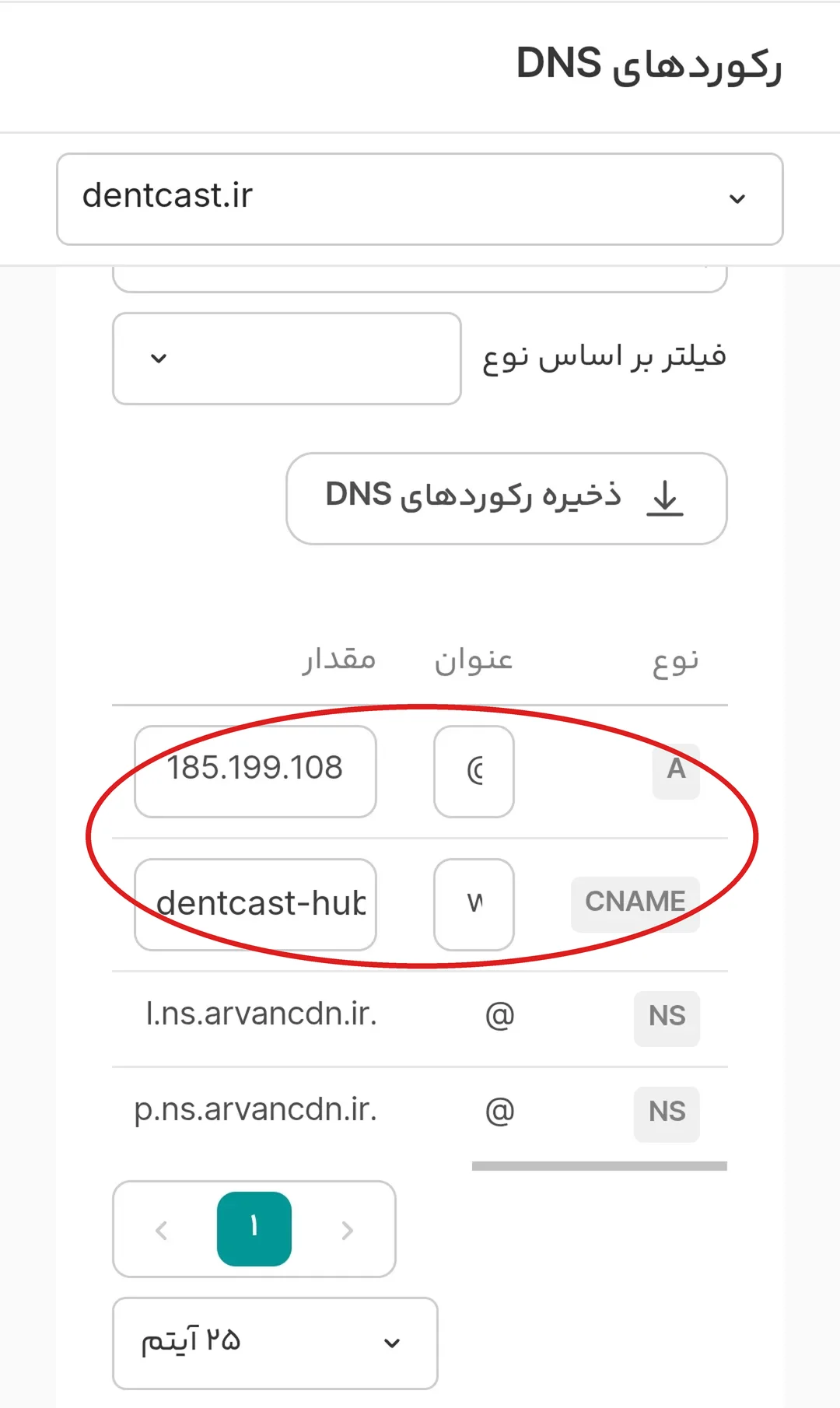
Why is the cloud switch off? Having this switch on means Arvan itself stands at the site’s door. But when the site is on GitHub and Arvan stands in front of it, GitHub cannot see that this name really belongs to you and does not get a lock for the site. So for now Arvan only keeps the ledger and sends the patient straight to GitHub.
Tell GitHub this name belongs to your site
The ledger now sends the patient to GitHub. But GitHub is like a large medical building with many sites inside. The guard of this building must know which floor to send a patient who says “drsamadi.ir”.
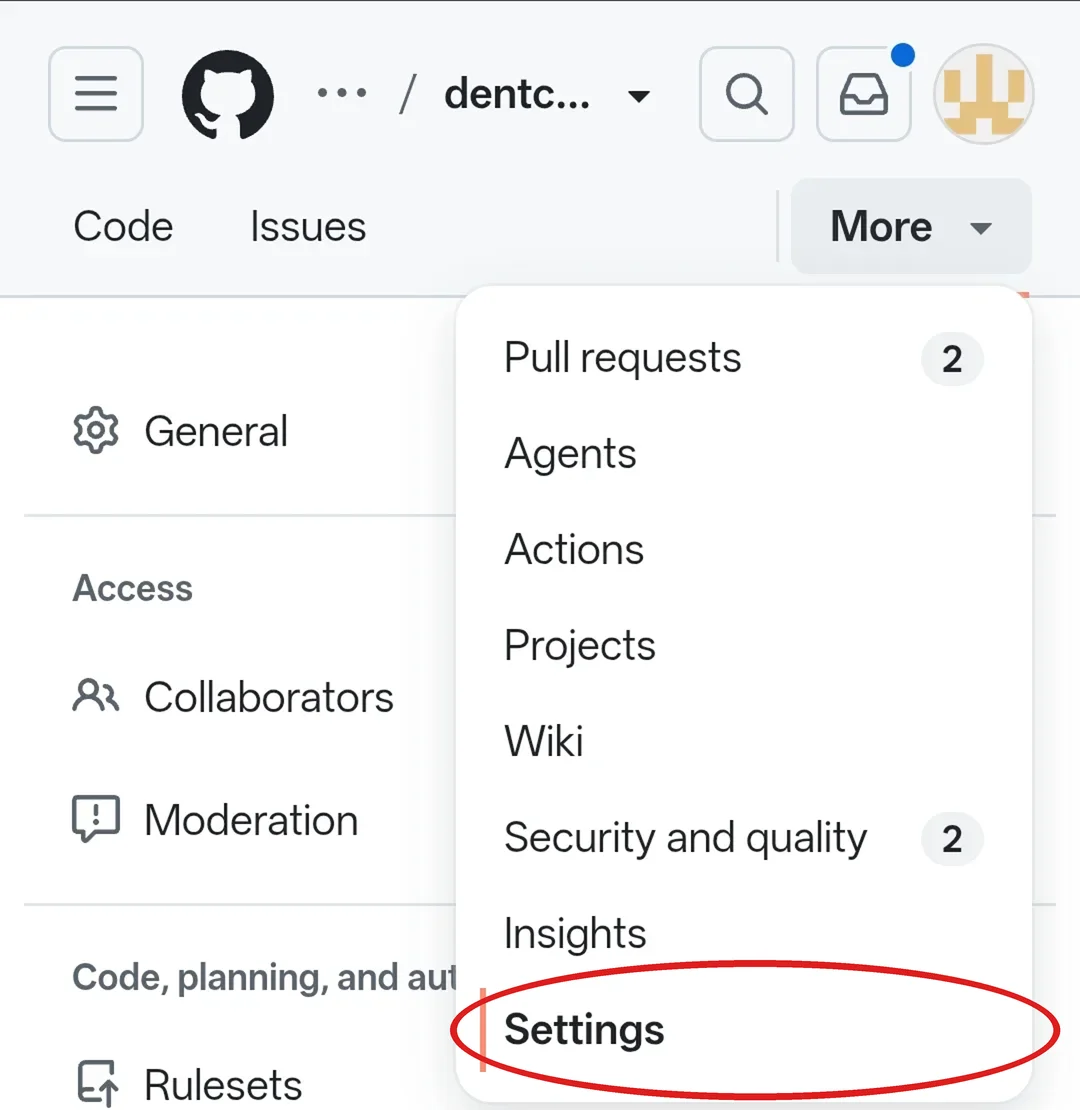
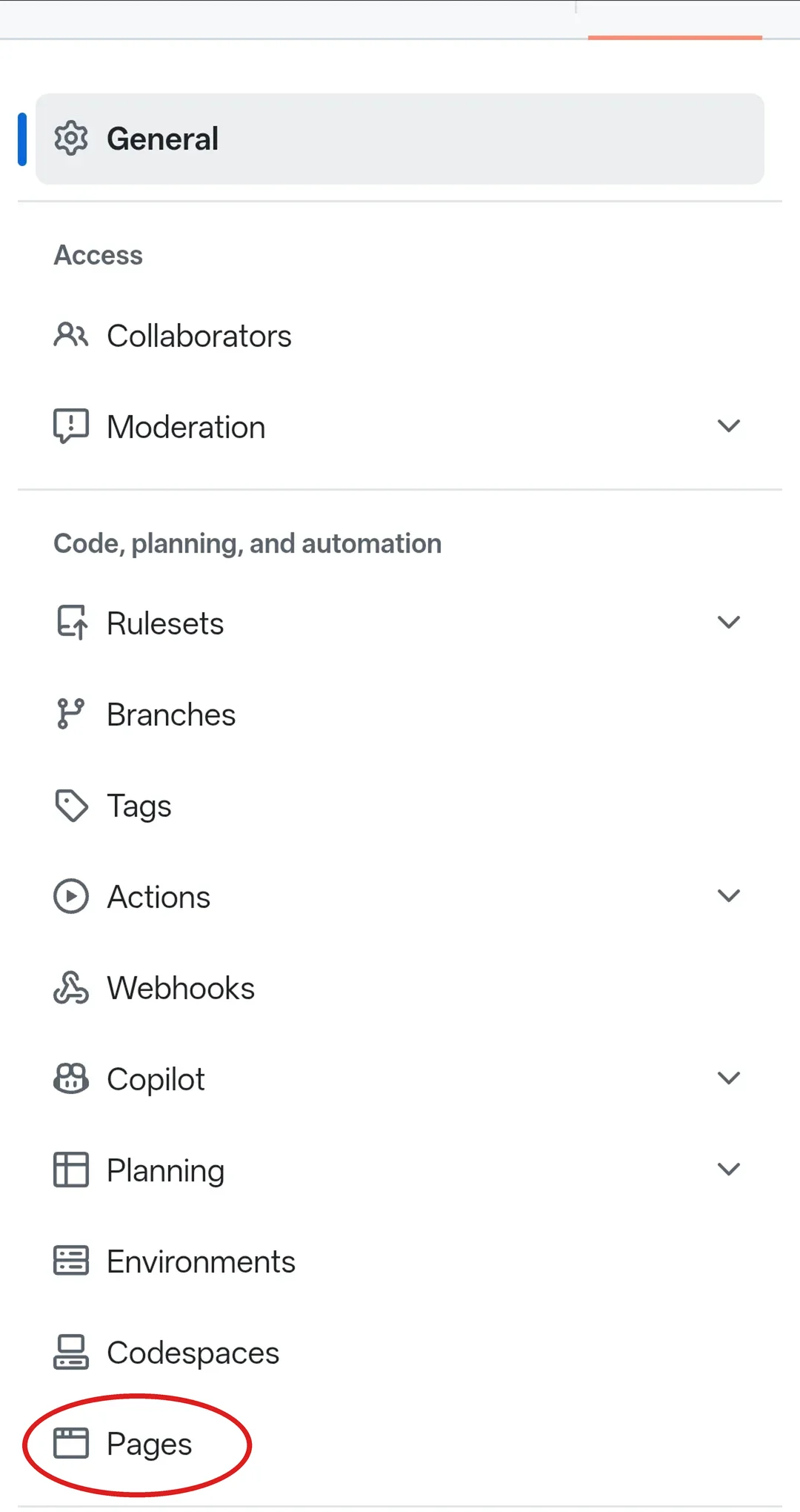
Go to the site’s repo on GitHub. On the phone, from the More menu tap Settings, and in the list open Pages. This is the same page you turned the site on with.
At the bottom of this page there is a section called Custom domain. In its box write your domain name without www, for example drsamadi.ir, and tap the Save button. You do not need to enter the www form separately; GitHub works out by itself that www.drsamadi.ir also belongs to this site.
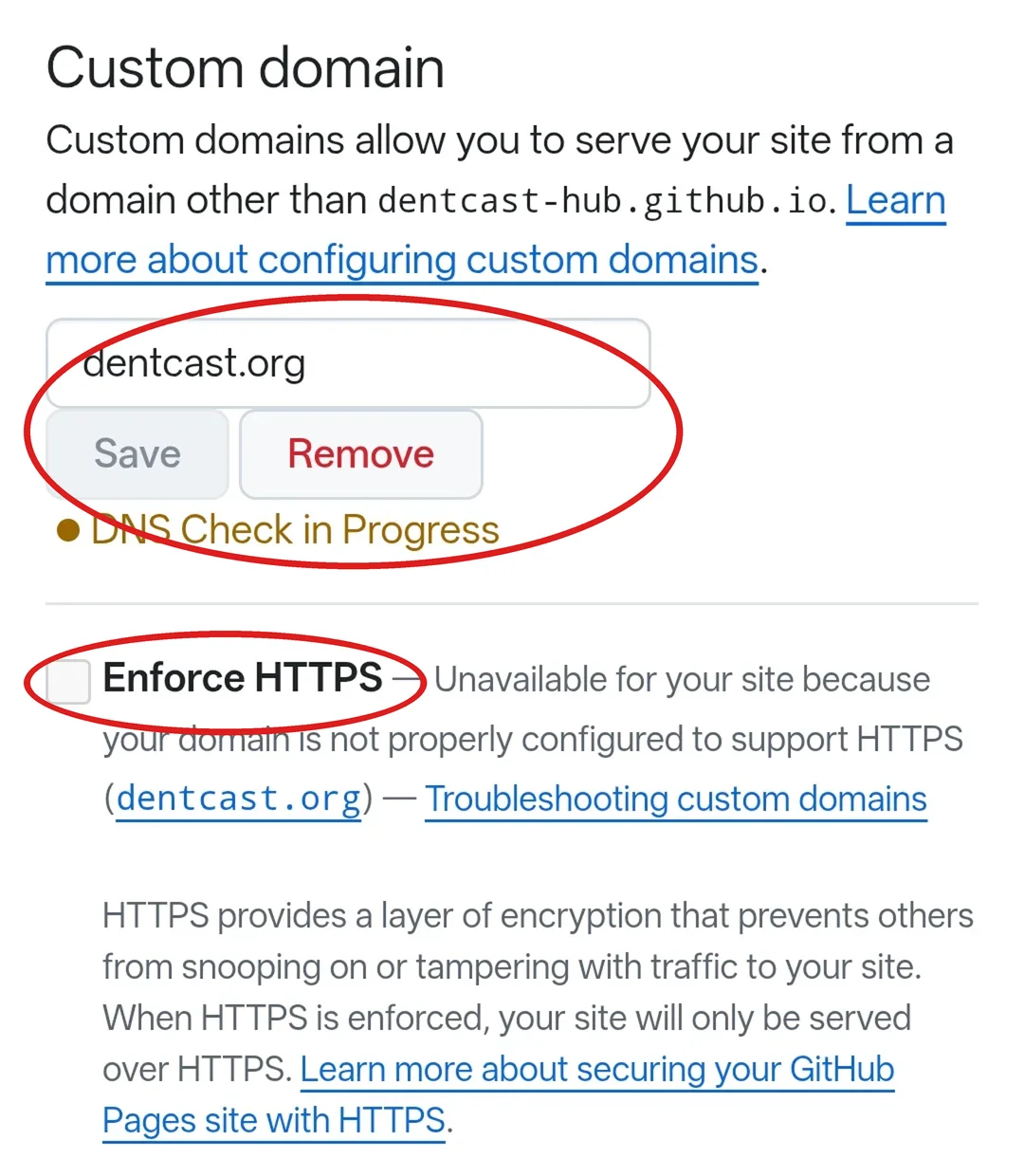
After Save, a yellow message appears under the box: DNS Check in Progress, meaning “checking the ledger”. GitHub is looking at your ledger in Arvan to make sure this name really points to your site. This check may take from a few minutes to a day. During this time it also says next to Enforce HTTPS that it is not available for now; this is normal and nothing is broken.
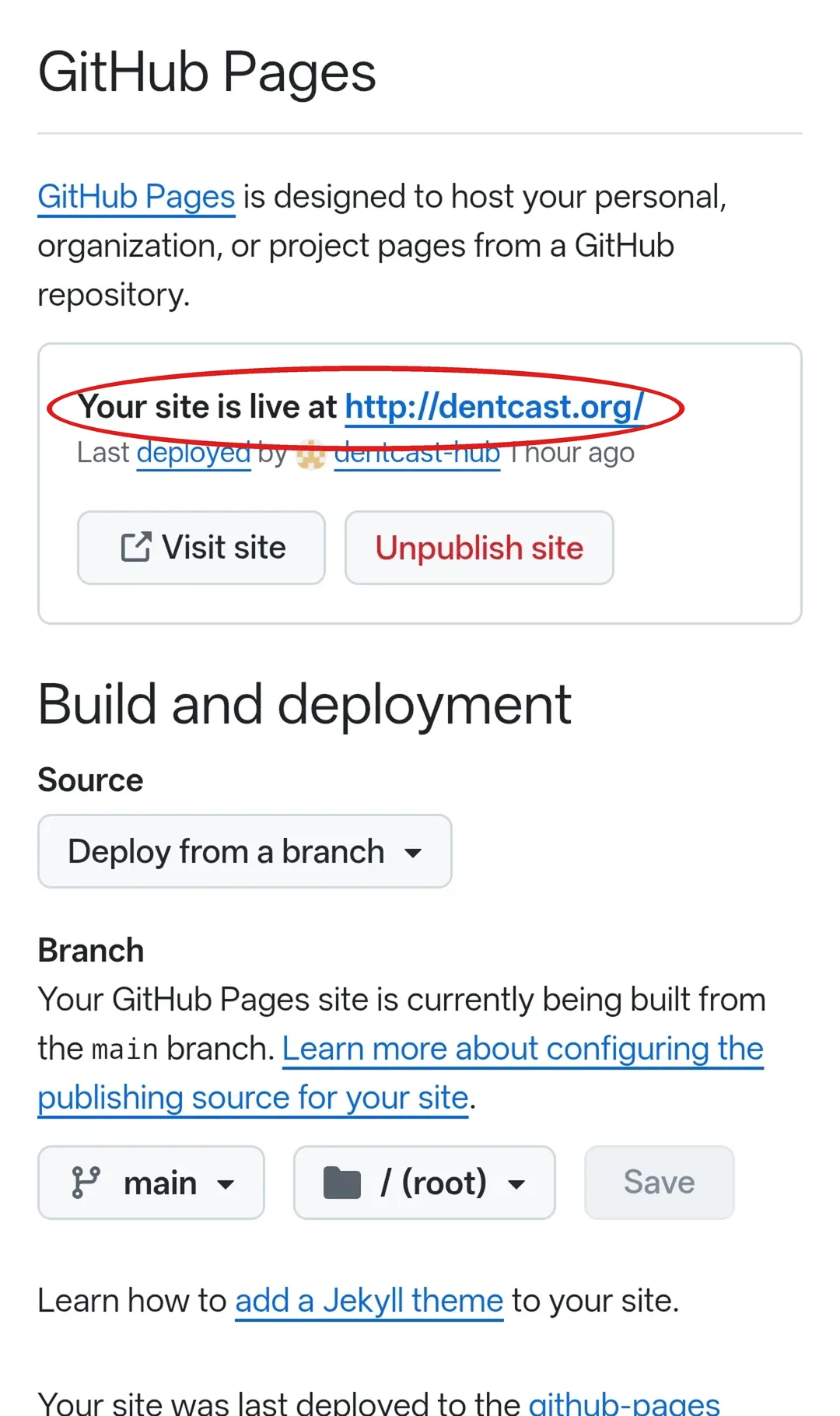
At the top of the same page, next to Your site is live at, you see the site’s new address.
The site’s lock
You have surely seen a small lock next to the address of some sites in your phone’s browser. This lock means that what passes between the patient’s phone and the site is like a letter in a sealed envelope and is not opened on the way. The technical name of this lock is HTTPS. A site without a lock opens on some phones with a “Not secure” warning and frightens the patient.
GitHub itself gives your site its lock, and it is free. When the ledger check is finished, the yellow message gives way to the green message DNS check successful, meaning “the ledger is correct”. Now next to Enforce HTTPS there is a small box you can tick. Enforce HTTPS means “always with the lock”. Tick it so that from now on the site opens only with the lock.
If after a day the yellow message is still there, check two things in Arvan: that all four GitHub numbers are written correctly, and that the cloud switch is off on all five lines.
Open the site on your phone
Type drsamadi.ir in your phone’s browser. The same page you have been seeing with drsamadi.github.io until today should open, this time with your own name and with a lock next to the address. Try www.drsamadi.ir too; it should open the same page.
From today, the address you give patients is drsamadi.ir. If a patient still types the temporary github.io address, GitHub itself takes them to the new address.
You have done it right if:
- drsamadi.ir opens on the phone and has a lock next to the address.
- www.drsamadi.ir also opens the same page.
- On GitHub’s Pages page, the green message DNS check successful has appeared and Enforce HTTPS is ticked.